


Deleting a Vanishing Point
To delete a vanishing point, select the [Perspective ruler] sub tool and set the process to [Delete vanishing point] in the Tool Property palette.
1Select the sub tool
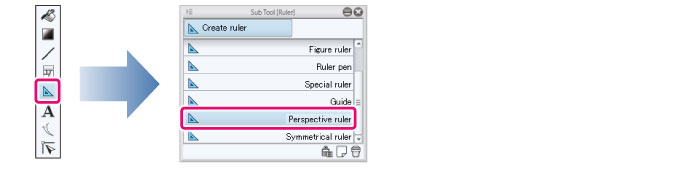
Select the [Ruler] tool and select [Perspective ruler] from the Sub Tool palette.
|
|
The initial configuration of the sub tools has been changed from Ver.1.6.2. For those who are used to a previous version of Clip Studio Paint, this operation is now performed by selecting the [Figure] tool and then selecting [Create ruler] > [Perspective ruler] on the Sub Tool palette. |
2Configure the tool property
In the Tool Property palette, set the process to [Delete vanishing point].

3Delete the vanishing point
Click the vanishing point or a guide line converging on the vanishing point. The vanishing point is deleted.
